
Show All Formulas in a Worksheet in Excel

Display all formulas instead of their output values.
This allows you to quickly troubleshoot issues in a worksheet without having to select each cell individually.
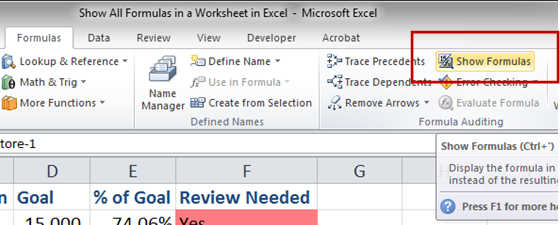
Go to the Formulas tab and click the Show Formulas button:
Now, your worksheet will look like this:
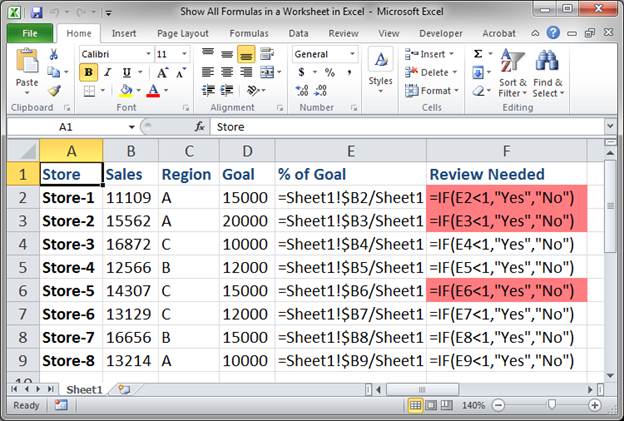
As you can see, this lets you quickly see what formulas and functions are contained within each cell. This helps you troubleshoot because most formulas in Excel follow a pattern, as you can see with those in Column E and so errors often stand-out.
Also, now, if you just select a cell, all cells used in the current cell's formula will be highlighted:
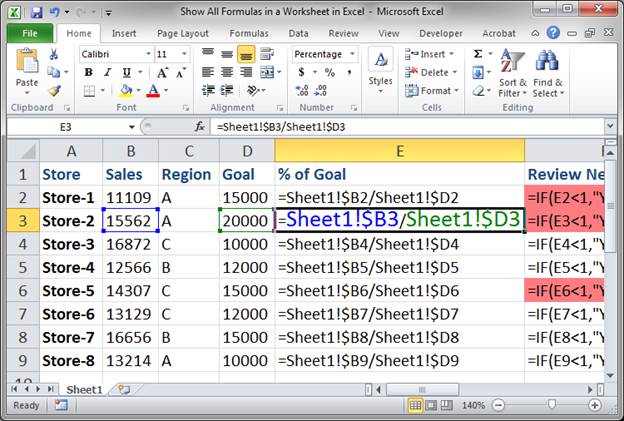
You can use the arrow keys to quickly move between cells to see how this can be helpful.
To go back to normal, just click the Show Formulas button again.
Notes
Download the accompanying workbook for this tutorial to see this example in Excel.
Question? Ask it in our Excel Forum

Excel VBA Course - From Beginner to Expert
200+ Video Lessons 50+ Hours of Instruction 200+ Excel Guides
Become a master of VBA and Macros in Excel and learn how to automate all of your tasks in Excel with this online course. (No VBA experience required.)
Tutorial: How to highlight the rows of the top and bottom performers in a list of data. This allows...
Tutorial: Moving Cells around a worksheet in Excel is fast an easy. Below I have a table of forename...
Tutorial: How to loop through a range of cells in a UDF, User Defined Function, in Excel. This is ...
Tutorial: A lookup using INDEX and MATCH is like a VLOOKUP without the restrictions. Index and Ma...
Tutorial: How to make Excel option buttons in a worksheet that are linked to formulas and functions...
Macro: This free Excel macro allows you to display the print preview mode or window in Excel for ...
Subscribe for Weekly Tutorials
BONUS: subscribe now to download our Top Tutorials Ebook!

Excel VBA Course - From Beginner to Expert
200+ Video Lessons
50+ Hours of Video
200+ Excel Guides
Become a master of VBA and Macros in Excel and learn how to automate all of your tasks in Excel with this online course. (No VBA experience required.)