
How to Resize Rows and Columns in Excel Quickly

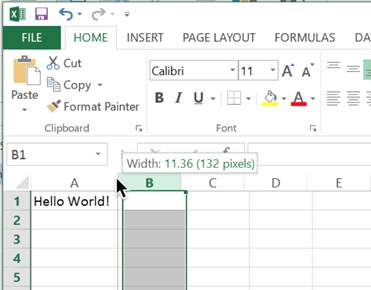
Resizing rows and columns in Excel is an easy process. Simply left click in between the columns and drag the mouse to the left or right. Below I resized column A so that all of the text will fit into 1 cell.
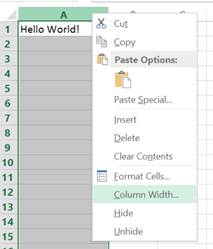
You can also do this by right clicking on a column and selecting Column Width
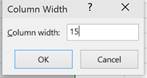
You then enter the width into the message box that pops up like below:
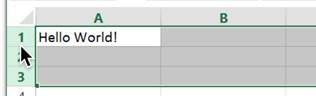
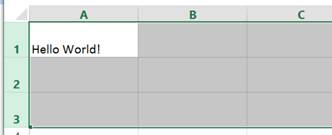
Resizing rows works exactly the same. You can even resize multiple rows or columns at once. Just select the rows/columns and left click between two of them. You then resize as desired to change all of your selection at once. Below I selected rows 1:3 and increased their size.
One last way to resize columns and rows is to use the auto-resize feature of Excel. To auto-resize a selection of columns or rows just double left click in between 2 of them. This automatically adjusts the width or height of the selected cells to fit their contents. This can also be used in conjunction with the select all cells feature of Excel as I did below. To select all columns, left click in the top left corner of your worksheet.
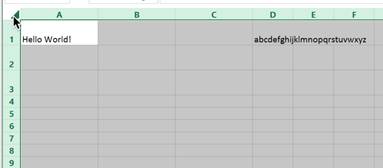
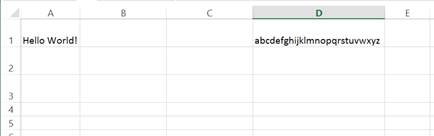
As you can see in my screenshot. In cell D1 I have entered the alphabet. As this is too many characters for the width of the column I need to resize it. I just double left click between column A and B after all cells have been selected and all the columns auto-resize. Column D is now much wider to fit all the letters of the alphabet.
Question? Ask it in our Excel Forum

Excel VBA Course - From Beginner to Expert
200+ Video Lessons 50+ Hours of Instruction 200+ Excel Guides
Become a master of VBA and Macros in Excel and learn how to automate all of your tasks in Excel with this online course. (No VBA experience required.)
Tutorial: How to shade every other row in Excel quickly without using the Table feature. This method...
Tutorial: Prevent specific rows or columns from moving when you scroll through a spreadsheet in Exce...
Tutorial: How to quickly resize multiple columns and rows at once in Excel. This avoids having to...
Tutorial: How to switch a data set in Excel so that the columns become rows and the rows become col...
Macro: This free Excel macro formats a selection of cells as a Percentage in Excel. This simply c...
Tutorial: How to convert numbers into the TRUE and FALSE Boolean values in Excel. This is very impor...
Subscribe for Weekly Tutorials
BONUS: subscribe now to download our Top Tutorials Ebook!

Excel VBA Course - From Beginner to Expert
200+ Video Lessons
50+ Hours of Video
200+ Excel Guides
Become a master of VBA and Macros in Excel and learn how to automate all of your tasks in Excel with this online course. (No VBA experience required.)