Add Image Background to a Chart in Excel

Download Project Files
Author:

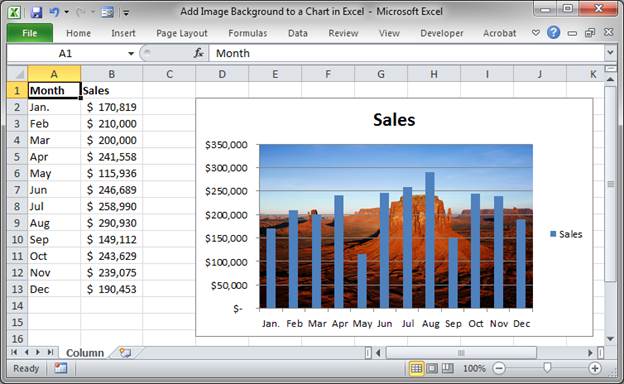
How to use an image for the background of a chart in Excel.

Simple but fun way to spruce up charts.

  1. Click the desired chart, go to the Layout tab which should have appeared, click Plot Area and then click More Plot Area Options
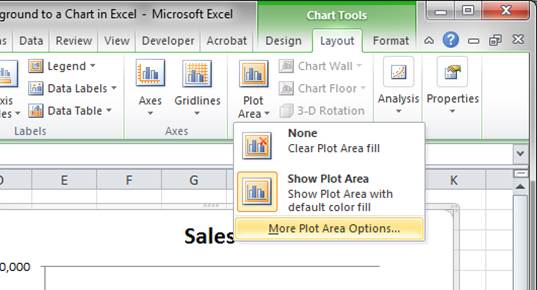
  2. In the Fill section click Picture or texture fill and it should look like this:
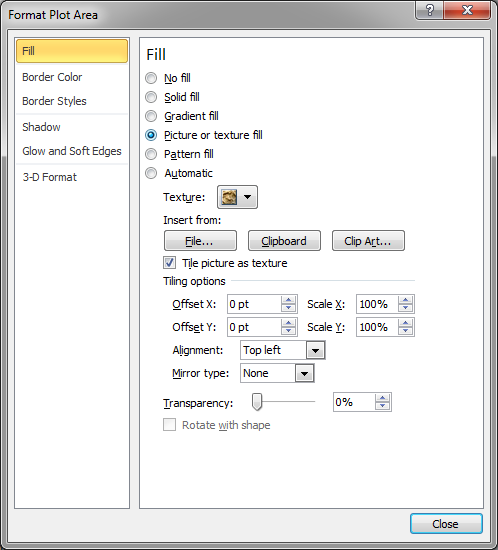
  3. Click the button File to choose an image from your computer.
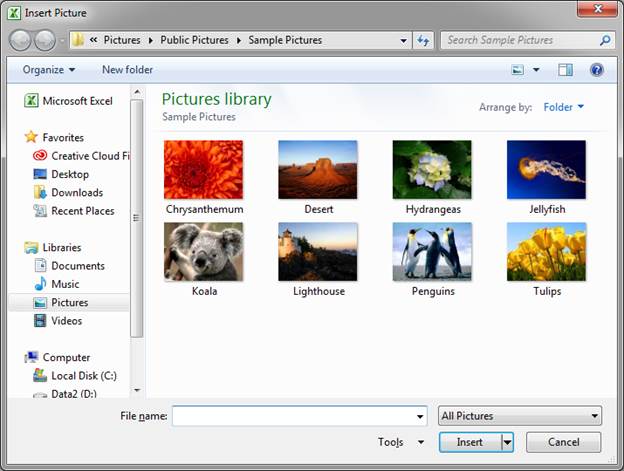
  4. Brows your computer and select the desired image. Click the desired image and then hit the Insert button.
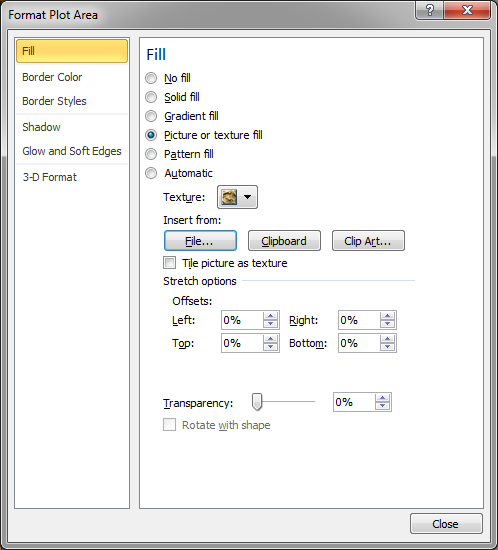
  5. You will see the other window again; click Close.
  6. That's it!

Now it may not look so great in my example but, hopefully, you will choose an image that matches the theme of your worksheet and the idea that you are trying to convey.

Notes

Download the accompanying spreadsheet to get this example in Excel.

Download the Project Files

Follow along with the tutorial by downloading the files used in it. (Completely Free)

Phone number is optional - we use it to send course discounts and weekly updates via SMS.

SMS Terms ▾
By submitting this form, you agree to receive recurring automated marketing text messages from TeachExcel at the mobile number provided. Consent is not a condition of any purchase. Msg frequency varies. Msg & data rates may apply. Reply HELP for help or STOP to cancel at any time.

View our Privacy Policy | Terms of Use

Downloadable Files: Project File

Download Project File

Follow along with the tutorial by downloading the files used in it. (Completely Free)

Phone number is optional - we use it to send course discounts and weekly updates via SMS.

SMS Terms ▾
By submitting this form, you agree to receive recurring automated marketing text messages from TeachExcel at the mobile number provided. Consent is not a condition of any purchase. Msg frequency varies. Msg & data rates may apply. Reply HELP for help or STOP to cancel at any time.

View our Privacy Policy | Terms of Use

Question? Ask it in our Excel Forum


Excel VBA Course
Excel VBA Course - From Beginner to Expert

200+ Video Lessons 50+ Hours of Instruction 200+ Excel Guides

Become a master of VBA and Macros in Excel and learn how to automate all of your tasks in Excel with this online course. (No VBA experience required.)

View Course

Similar Content on TeachExcel
Update, Change, and Manage the Data Used in a Chart in Excel
Tutorial: In this tutorial I am going to show you how to update, change and manage the data used by ...
Change the Name of a Chart in Excel
Tutorial: How to change the name of a chart in Excel. This allows you to use a more intuitive char...
Add a Drop Down Menu to a Cell in Excel - Data Validation Macro
Macro: Add a drop down menu or list to a cell in Excel with this free Excel macro. This is a grea...
How to Add Boxes, Buttons, Arrows, Speech-Bubbles, Hearts, and More to a Spreadsheet in Excel
Tutorial: In this tutorial I am going to cover inserting and editing Shapes in an Excel workbook, as...
How to Create and Manage a Chart in Excel
Tutorial: In this tutorial I am going to introduce you to creating and managing charts in Excel. Bef...
Changing Any Element in a Chart in Excel
Tutorial: In this tutorial I am going to go through the Layout tab in more detail and show you how t...
Tutorial Details
Downloadable Files: Project File

Download Project File

Follow along with the tutorial by downloading the files used in it. (Completely Free)

Phone number is optional - we use it to send course discounts and weekly updates via SMS.

SMS Terms ▾
By submitting this form, you agree to receive recurring automated marketing text messages from TeachExcel at the mobile number provided. Consent is not a condition of any purchase. Msg frequency varies. Msg & data rates may apply. Reply HELP for help or STOP to cancel at any time.

View our Privacy Policy | Terms of Use
Excel VBA Course
Excel VBA Course - From Beginner to Expert

200+ Video Lessons
50+ Hours of Video
200+ Excel Guides

Become a master of VBA and Macros in Excel and learn how to automate all of your tasks in Excel with this online course. (No VBA experience required.)

View Course