Turn Off the Formatting Window Popup in Excel

Download Project Files
Author:

How to stop the annoying formatting window, the "Mini Toolbar" from appearing when you select text in Excel.

The problem:
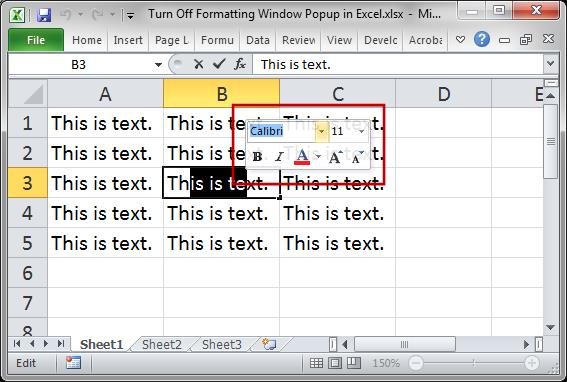
I hate that thing more than words can describe and here is how to turn it off.

Kill the Mini Toolbar

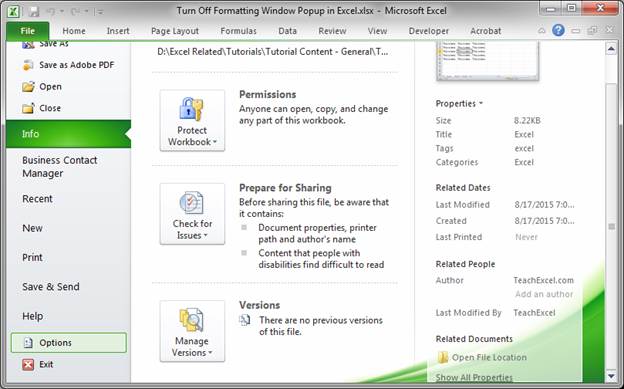
  1. Go to the File menu and click Options

  2. Go to the General section, it should show by default, and then look to the top and un-check next to where it says Show Mini Toolbar on selection
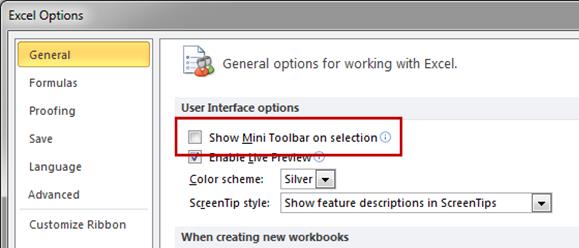
  3. Hit OK and that's it.

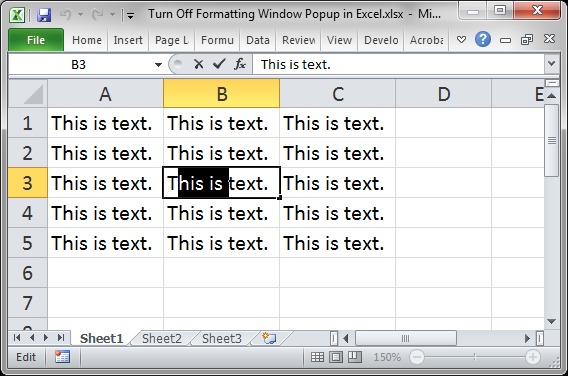
Now you can select text without that little monster appearing:
Notes

Don't forget to download the sample file for this tutorial.


Download the Project Files

Follow along with the tutorial by downloading the files used in it. (Completely Free)

Phone number is optional - we use it to send course discounts and weekly updates via SMS.

SMS Terms ▾
By submitting this form, you agree to receive recurring automated marketing text messages from TeachExcel at the mobile number provided. Consent is not a condition of any purchase. Msg frequency varies. Msg & data rates may apply. Reply HELP for help or STOP to cancel at any time.

View our Privacy Policy | Terms of Use

Downloadable Files: Project File

Download Project File

Follow along with the tutorial by downloading the files used in it. (Completely Free)

Phone number is optional - we use it to send course discounts and weekly updates via SMS.

SMS Terms ▾
By submitting this form, you agree to receive recurring automated marketing text messages from TeachExcel at the mobile number provided. Consent is not a condition of any purchase. Msg frequency varies. Msg & data rates may apply. Reply HELP for help or STOP to cancel at any time.

View our Privacy Policy | Terms of Use

Question? Ask it in our Excel Forum


Excel VBA Course
Excel VBA Course - From Beginner to Expert

200+ Video Lessons 50+ Hours of Instruction 200+ Excel Guides

Become a master of VBA and Macros in Excel and learn how to automate all of your tasks in Excel with this online course. (No VBA experience required.)

View Course

Similar Content on TeachExcel
Create a 12 Month Calendar With The Current Day Highlighted in Excel
Macro: Create a 12 month formatted calendar on a new tab in Excel with the current day highlighte...
Pivot Chart Formatting Copy Trick in Excel - Excel Quickie
Tutorial: Easily copy Pivot Chart formatting from one Pivot Chart to another Pivot Chart in Excel. ...
Disables the "Save As" Feature in Excel
Macro: This macro will disable the Save As feature in excel. This means that a user will not...
Filter Data to Show Only the Bottom 10 Items in Excel - AutoFilter
Macro: This Excel macro filters a selection of data in order to display only the bottom 10 items ...
Make Threshold Alert Popups in Excel - Easy Version
Tutorial: How to make a popup window in Excel that appears when a value reaches a certain level. Yo...
Create and Manage Tables in Excel
Tutorial: Here, I'll show you everything you need to know to get started using tables in Excel; how...
Tutorial Details
Downloadable Files: Project File

Download Project File

Follow along with the tutorial by downloading the files used in it. (Completely Free)

Phone number is optional - we use it to send course discounts and weekly updates via SMS.

SMS Terms ▾
By submitting this form, you agree to receive recurring automated marketing text messages from TeachExcel at the mobile number provided. Consent is not a condition of any purchase. Msg frequency varies. Msg & data rates may apply. Reply HELP for help or STOP to cancel at any time.

View our Privacy Policy | Terms of Use
Excel VBA Course
Excel VBA Course - From Beginner to Expert

200+ Video Lessons
50+ Hours of Video
200+ Excel Guides

Become a master of VBA and Macros in Excel and learn how to automate all of your tasks in Excel with this online course. (No VBA experience required.)

View Course