
Insert Check Mark in Excel - 3 Ways - Incl. VBA and UDF

This tutorial goes beyond other simple check-mark tutorials. Here, I'll show you 3 methods to insert a check-mark into Excel, including using Macros/VBA and a UDF, or User Defined Function.
Sections:
Basic Method to Insert a Check Mark into Excel
VBA Method to Insert a Check Mark into Excel
UDF that Inserts a Check Mark into Excel
Basic Method to Insert a Check Mark into Excel
This is the most basic way you can enter a check-mark, but it's kind of time consuming.
- Select the cell where you want the check-mark to go.
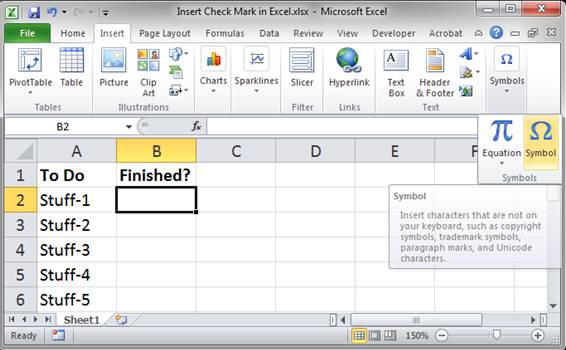
- Go to the Insert tab and click the Symbols button and then Symbol
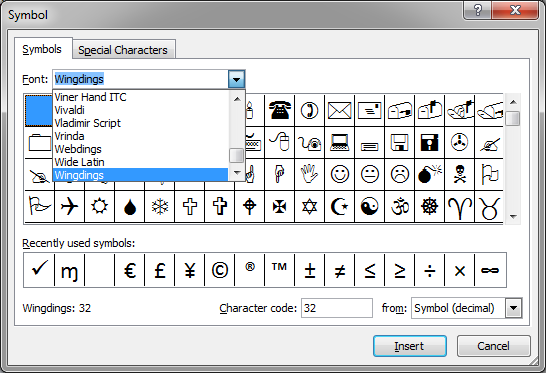
- In the window that opens, go to the Symbols tab and select the Wingdings font from the Font: drop down at the top.
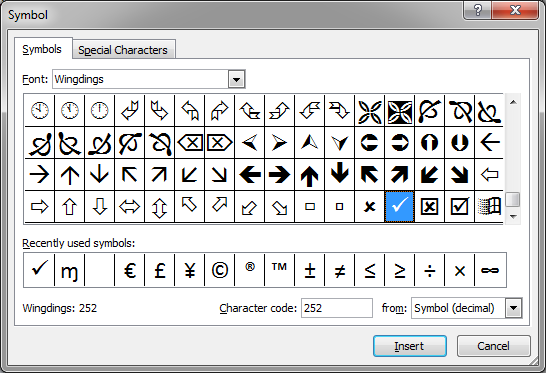
- Scroll down to the bottom and choose the check-mark symbol:
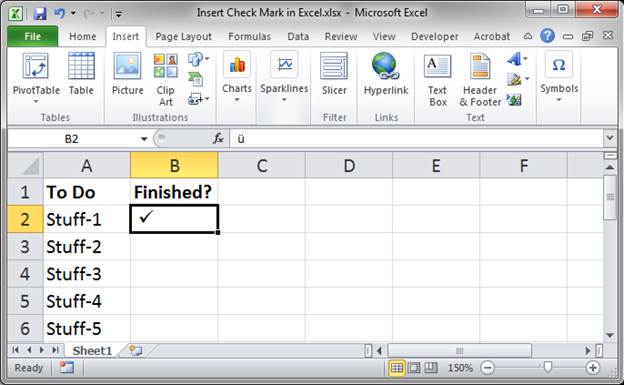
- Hit the Insert button once and then hit the Cancel button and you will now see the check-mark in Excel.
Repeatedly Enter the Check Mark with Ease
Now that you have a check-mark, you may want to enter it again and again. To do that, select the cell with the mark and hit Ctrl + C and then go to where you want it, select that cell, and hit Ctrl + V. Simple copy/paste.
VBA Method to Insert a Check Mark into Excel
To enter a check-mark using VBA, it's actually very simple.
- Go to the VBA Editor window, Alt + F11, then to Insert > Module.
- Paste this code into your macro:
ActiveCell.Value = ChrW(&H2713) - The final macro, in its simplest form can look like this:
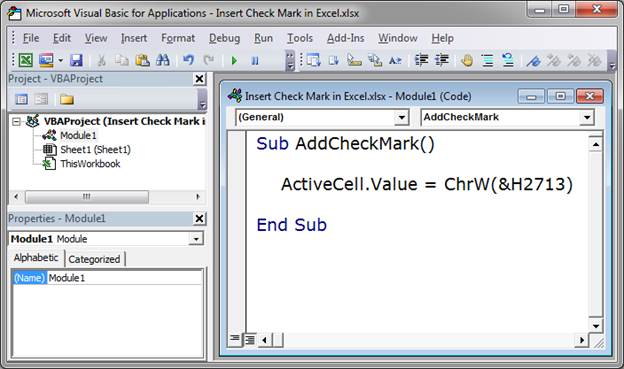
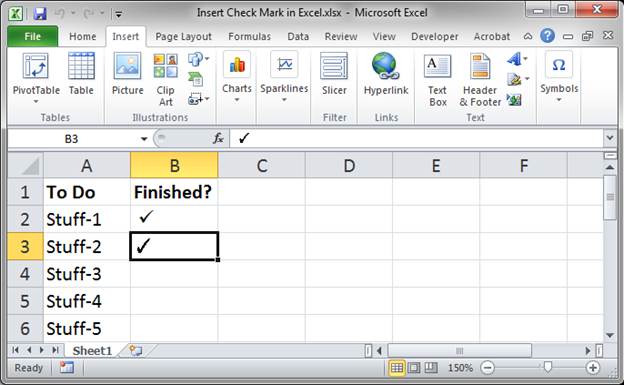
- Go back to Excel (Alt + F11) and select a cell, hit Alt + F8, select the macro, hit Run and you have another check-mark in Excel.
UDF that Inserts a Check Mark into Excel
This allows you to use a simple function that you create to add a check mark to Excel.
- Go to the VBA Editor window (Alt + F11) and add a module (Insert >Module) and then add this code:
Function CheckMarkAdd()

    CheckMarkAdd = ChrW(&H2713)

  End Function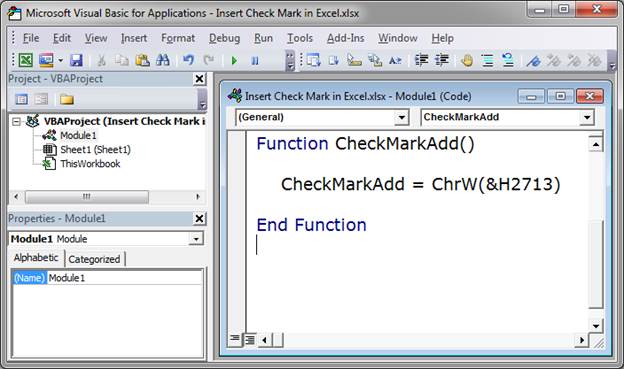
- Go back to Excel, Alt + F11, and go to the desired cell and type your new function =CheckMarkAdd()
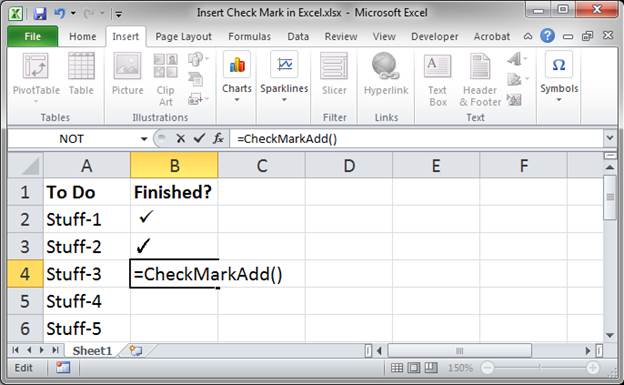
- Hit Enter and that's it!
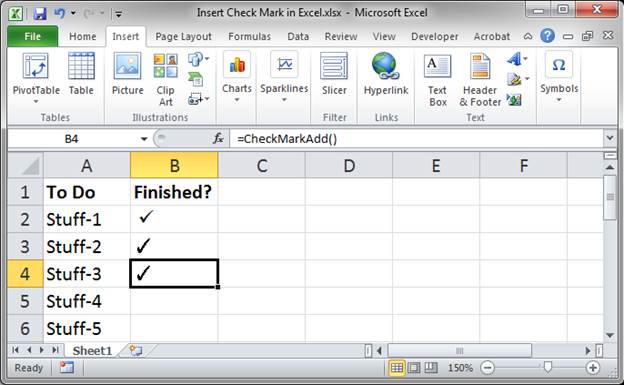
Using this method, you only ever have to remember the UDF that you created and, in less than a second, you can type it in, hit Enter, and you have your check-mark.
This is my favorite method to use!
Notes
All of the above methods come in handy depending on the situation. My person favorite is the UDF method because I love UDFs and it's just so simple to use.
Download the sample workbook attached to this tutorial to get all of the code used here and try it yourself.
Question? Ask it in our Excel Forum

Excel VBA Course - From Beginner to Expert
200+ Video Lessons 50+ Hours of Instruction 200+ Excel Guides
Become a master of VBA and Macros in Excel and learn how to automate all of your tasks in Excel with this online course. (No VBA experience required.)
Subscribe for Weekly Tutorials
BONUS: subscribe now to download our Top Tutorials Ebook!

Excel VBA Course - From Beginner to Expert
200+ Video Lessons
50+ Hours of Video
200+ Excel Guides
Become a master of VBA and Macros in Excel and learn how to automate all of your tasks in Excel with this online course. (No VBA experience required.)