
Generate Random Numbers within a Range in Excel

How to generate random whole numbers (integers) that are between two numbers. This allows you to set a minimum and maximum possible value and then generate random numbers within that range.
Make sure to download the accompanying workbook to follow along.
Sections:
Steps to Generate Random Numbers within a Range in Excel
Quickly Make a List of Random Numbers
How to Freeze the Random Numbers Generated in Excel
Steps to Generate Random Numbers within a Range in Excel
To achieve the desired result, we will use the RANDBETWEEN function.
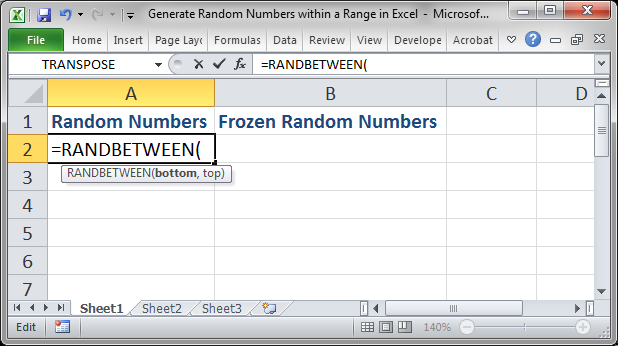
- Go to the cell where you want the random number and type =RANDBETWEEN(
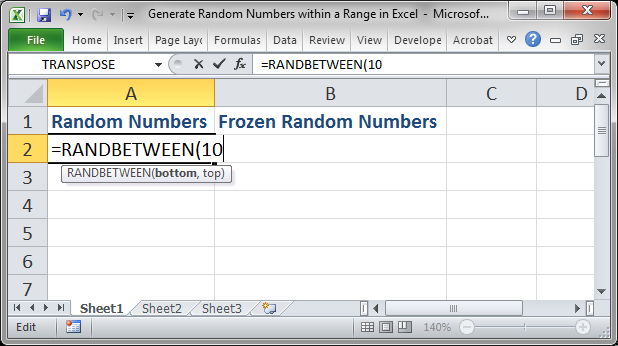
- For the bottom argument, input the minimum number that you want to be able to be generated. This can be negative or positive, but it should be a whole number, as in, it can't be a fraction like 1.5.
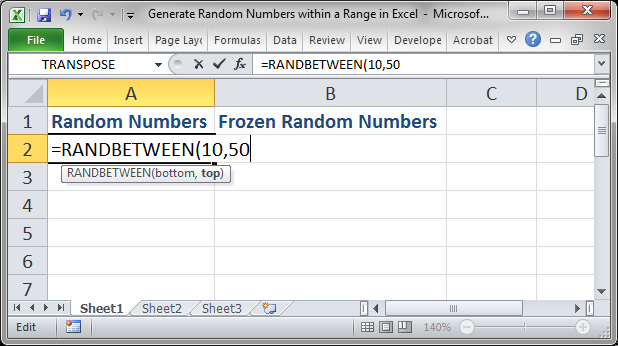
- Type a comma to go to the next argument and enter a value for the top argument. This value can be positive or negative, but it cannot be a fraction; it must be a whole number. Also, this number must be greater than the number for the bottom argument.
- When you're done, hit Enter and you can see the result.
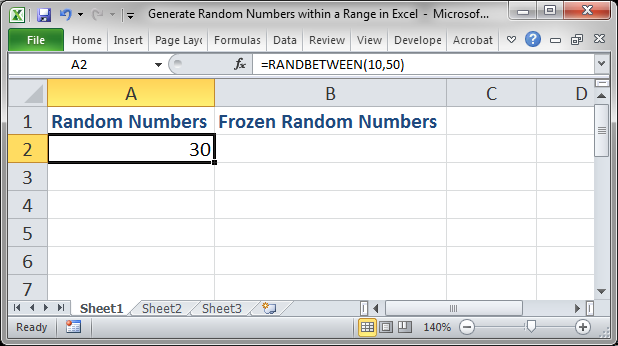
Note that every time the worksheet updates, which is when any cell is changed or when you press the F9 key, this number will change.
Quickly Make a List of Random Numbers
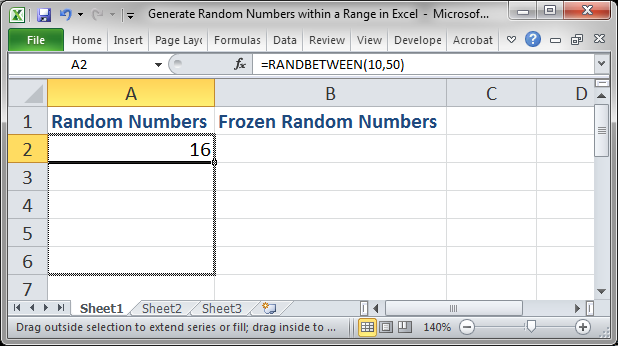
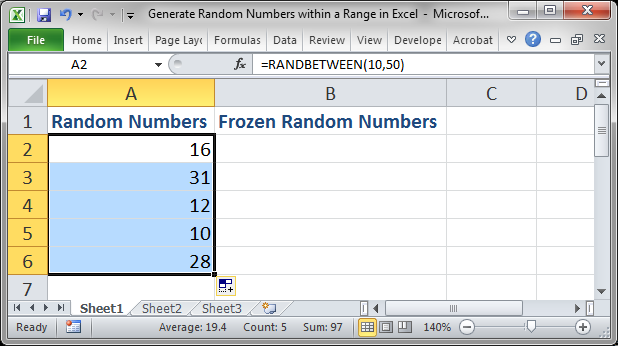
Follow the instructions above to create a random number using the RANDBETWEEN function and then click the cell that contains this function and use the quick-fill handle in the bottom right corner of the cell to copy the formula down and across as far as you want.
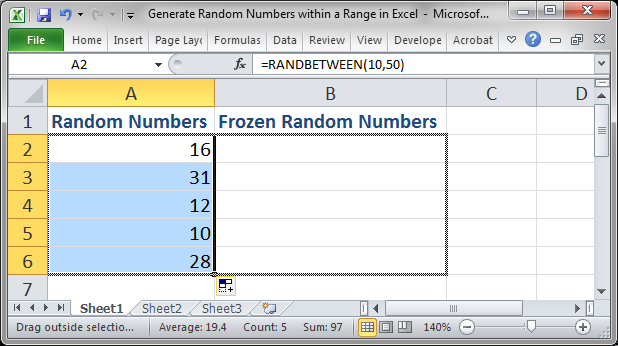
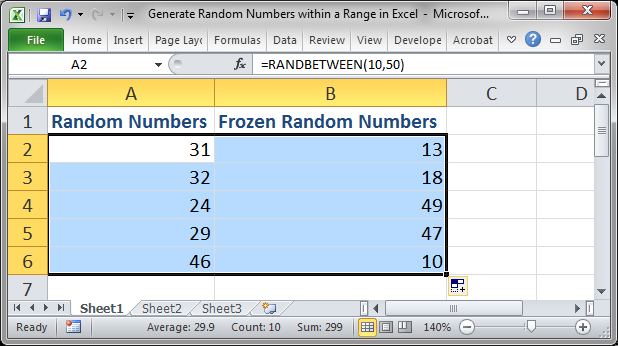
Copy it to the right in the same manner:
How to Freeze the Random Numbers Generated in Excel
When you use the RANDBETWEEN function, every time the worksheet is changed or updated, the numbers will change. However, once the numbers have been generated, you can keep them the same by copy-pasting special.
- Select the cells that you want to remain the same:
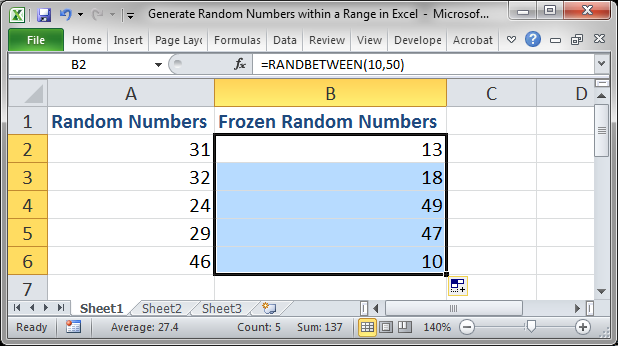
- Hit Ctrl + C to copy those cells:
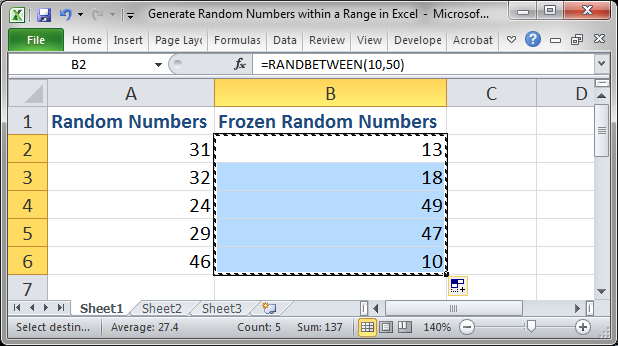
- Without clicking anywhere or hitting any other keys, use this keyboard shortcut: Alt + E + S + V and then Enter.
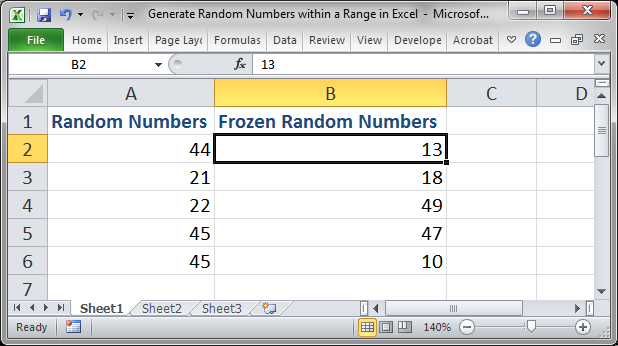
All of these numbers are now actual numbers instead of being an Excel function. This means that they will not change when you update the spreadsheet and you can work on them as you like.
Notes
This is a simple but helpful tip for creating random numbers that are within a specific range. In fact, this is what I use to create sample worksheets quickly.
Remember that the random numbers will change each time the spreadsheet is updated unless you follow the steps above to change them into regular numbers.
Download the accompanying worksheet to see this function in action.
Question? Ask it in our Excel Forum

Excel VBA Course - From Beginner to Expert
200+ Video Lessons 50+ Hours of Instruction 200+ Excel Guides
Become a master of VBA and Macros in Excel and learn how to automate all of your tasks in Excel with this online course. (No VBA experience required.)
Tutorial: I'll show you how to require a user to enter a unique number into a range of cells in Exce...
Tutorial: How to count the number of errors in a range in Excel; also, how to count the occurrence ...
Macro: Return the ISO Week Number in Excel with this UDF. This is a simple to use UDF (user defin...
Tutorial: How to quickly delete all empty cells or rows from a range in Excel. This allows you to ...
Tutorial: Ensure that your lists and data sets are full of only unique values by preventing a user ...
Tutorial: Formulas that you can use to get the value of the last non-empty cell in a range in Excel...
Subscribe for Weekly Tutorials
BONUS: subscribe now to download our Top Tutorials Ebook!

Excel VBA Course - From Beginner to Expert
200+ Video Lessons
50+ Hours of Video
200+ Excel Guides
Become a master of VBA and Macros in Excel and learn how to automate all of your tasks in Excel with this online course. (No VBA experience required.)