
Freeze or Lock Specific Rows and Columns when Scrolling in Excel

Prevent specific rows or columns from moving when you scroll through a spreadsheet in Excel.
This allows you to keep header rows and columns in place so you can tell what each column or row is for no matter where you are in the worksheet.
In Excel, this is called Freezing Panes.
Sections:
Steps to Lock Rows/Columns in Excel
Steps to Lock Multiple Rows/Columns in Excel at the Same Time
Unfreeze/Unlock Columns and Rows in Excel
Steps to Lock Rows/Columns in Excel
- Go to the View tab and click the Freeze Panes button.
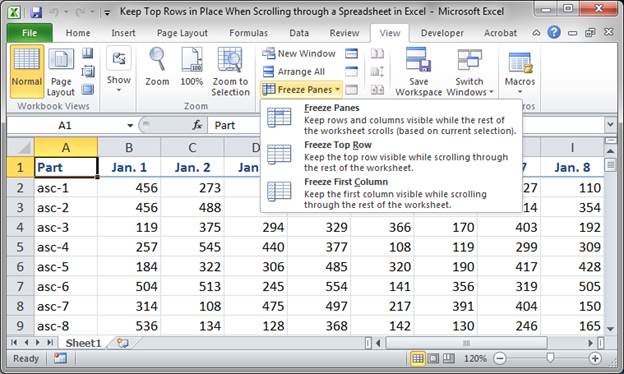
- From the drop down menu select if you want the header row, the first row of data, or the header column, the first column of data to be frozen. I will select Freeze Top Row to lock the first row in place.
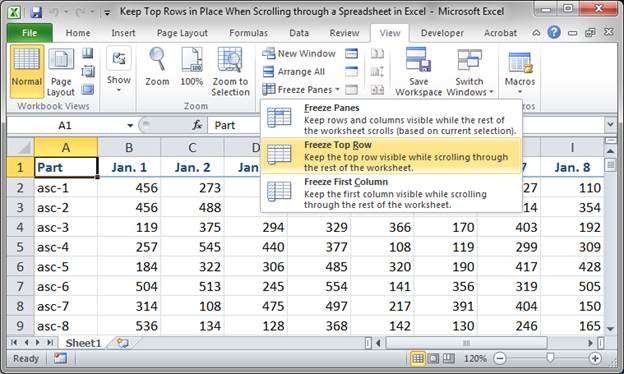
- That's it!
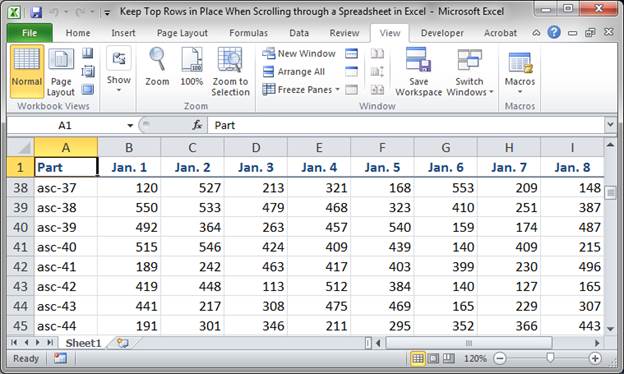
Now, when I scroll, you can see that the first row never changes:
If I chose to freeze the first column, then it would look like this:
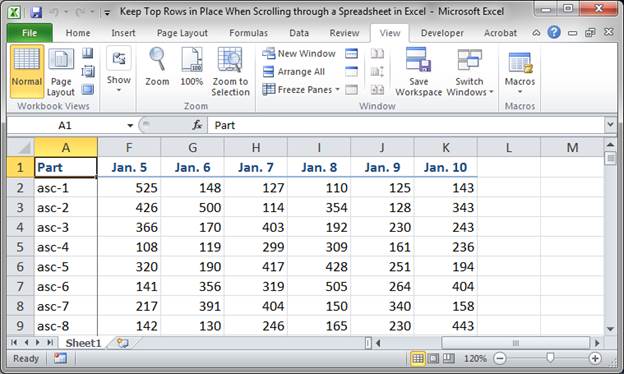
The first column now stays the same when I scroll to the right or left.
However, the first column and the first row cannot both stay frozen together unless you use another method, explained below.
Steps to Lock Multiple Rows/Columns in Excel at the Same Time
Use this method to lock multiple rows or columns at the same time or to lock rows and columns at the same time.
- Select the cell that is just to the right and to the bottom of the rows and columns that you want to freeze.
If I wanted to freeze Column A and Row 1, then I would select cell B2 because it is just below Row 1 and just to the right of Column A.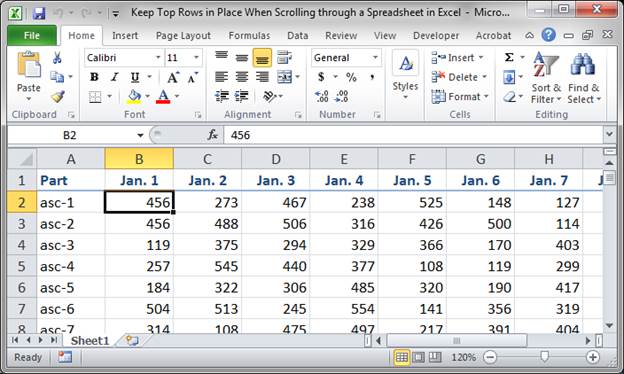
- Go to the View tab and click the button Freeze Panes and click the first option Freeze Panes:
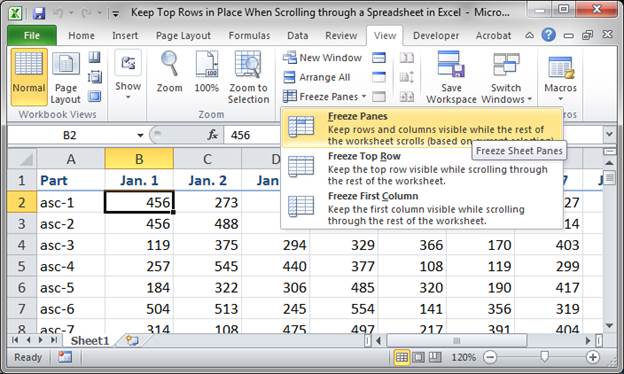
- That's it!
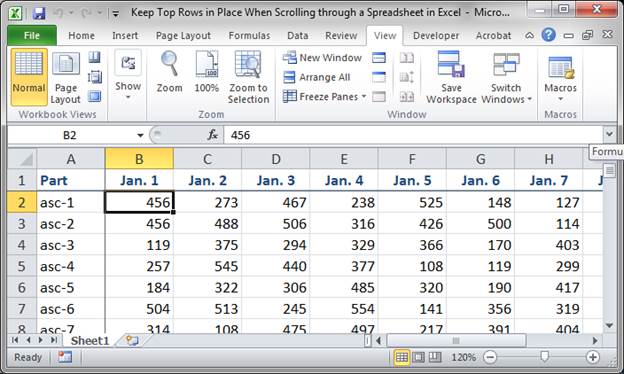
Now, I can scroll down and to the right and the first column and row will remain in place.
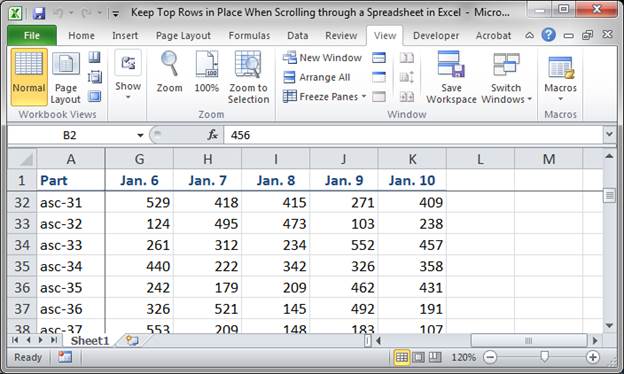
Using this method, you can freeze the first two rows, the first two columns, the first two rows and the first 2 columns at the same time, basically whatever you want.
Unfreeze/Unlock Columns and Rows in Excel
Go to the View tab and click Freeze Panes and, if there are any frozen panes in the worksheet, you will see the first choice in the list titled Unfreeze Panes, click that.
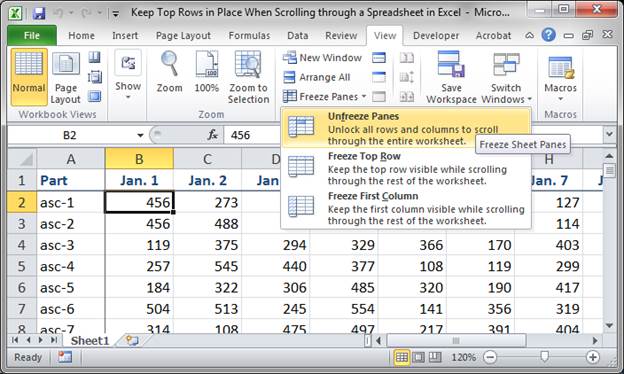
Notes
You can only freeze the rows starting from the top and the columns starting from the left. You cannot, for instance, freeze the third column and nothing else around it.
Download the spreadsheet that accompanies this tutorial to see this feature in action in Excel.
Question? Ask it in our Excel Forum

Excel VBA Course - From Beginner to Expert
200+ Video Lessons 50+ Hours of Instruction 200+ Excel Guides
Become a master of VBA and Macros in Excel and learn how to automate all of your tasks in Excel with this online course. (No VBA experience required.)
Tutorial: In this tutorial I am going to cover the difference between Absolute and Relative Cell Ref...
Tutorial: Resizing rows and columns in Excel is an easy process. Simply left click in between the co...
Tutorial: How to insert, remove, and manage page breaks in Excel. This can be rather annoying and...
Macro: Return the highest number between two numbers that is in a range of cells with this UD...
Tutorial: How to stop Images and Shapes from resizing in Excel when you change the size of rows and...
Tutorial: How to make a user input form in Excel and have the data stored on another worksheet at th...
Subscribe for Weekly Tutorials
BONUS: subscribe now to download our Top Tutorials Ebook!

Excel VBA Course - From Beginner to Expert
200+ Video Lessons
50+ Hours of Video
200+ Excel Guides
Become a master of VBA and Macros in Excel and learn how to automate all of your tasks in Excel with this online course. (No VBA experience required.)