
Delete All Rows that Contain a Specific Value in Excel

Quickly find all rows in Excel that contain a certain value and then delete those rows.
This is a simple technique for quickly searching an entire worksheet to locate specific rows that you can then delete without having to individually search a data set and delete each row.
Steps to Delete All Rows that Contain a Specific Value
- Go to the worksheet that contains the data.
- Hit Ctrl + F to open the Find and Replace window.
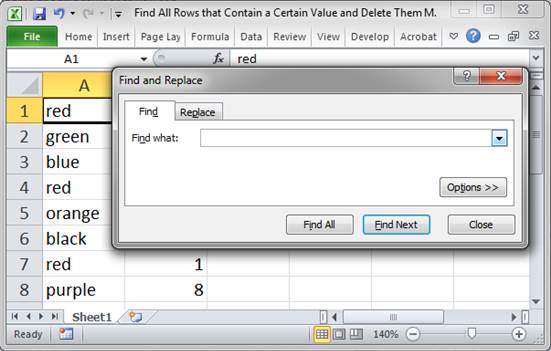
- Type the text for which you want to search. This text can be any value in the rows that should be deleted. In this case, I want to delete all rows that contain the word "red".
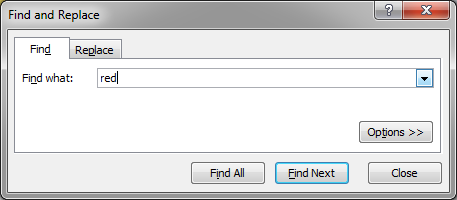
- Click the Find All button.
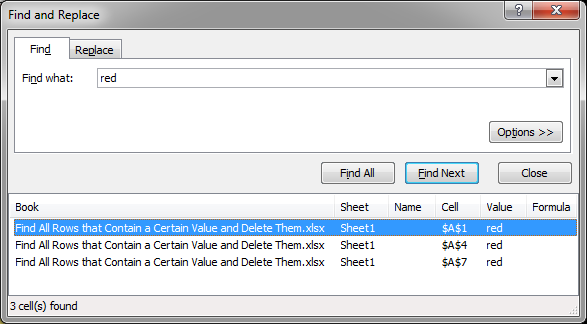
- If the search in step 4 did not return the desired results, click the Options > > button to access more search features.
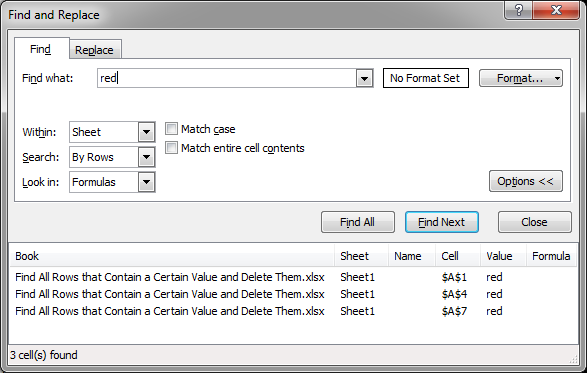
Adjust the search parameters on this page as desired; they are self-explanatory. - Click a result from the bottom of this window and then hit Ctrl + A to select all of the results.
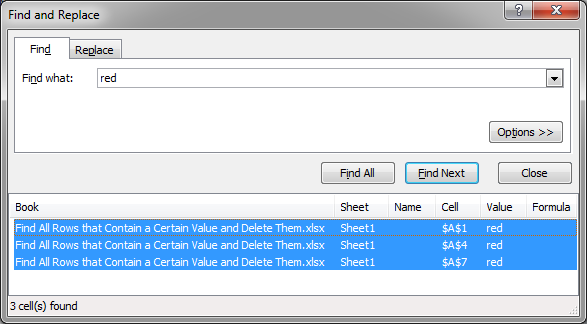
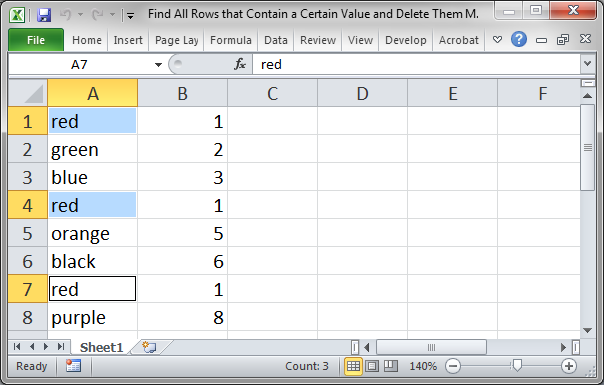
- Once you have selected the results, hit the Close button and you should notice that each cell that was located in the search is now highlighted in the worksheet.
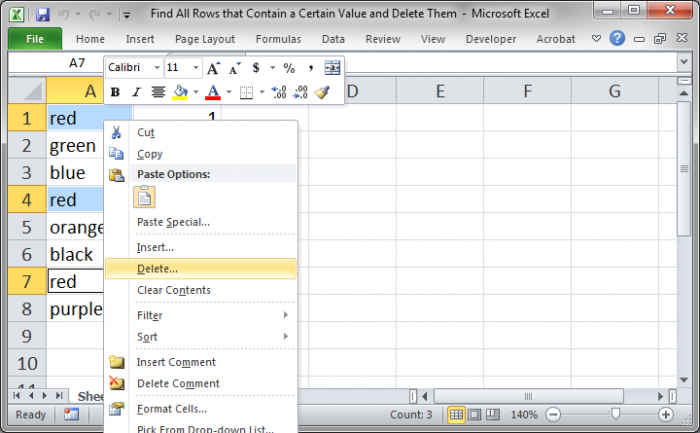
- Right-click over one of these cells and select Delete.
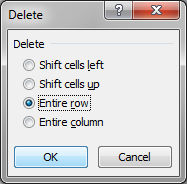
- In the window that opens, click Entire row and then hit OK.
- That's it!
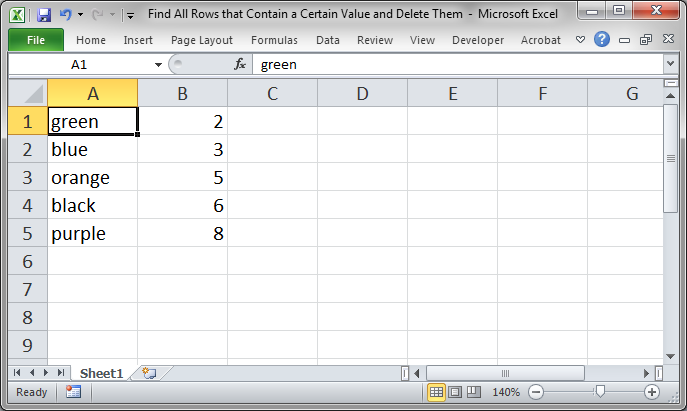
Now, there are no more rows that contain the word "red".
Notes
If you made a mistake simply hit Ctrl + Z to undo the last action and you will see the original data set again.
Make sure to download our sample spreadsheet, which accompanies this tutorial, so you can try it out yourself.
Question? Ask it in our Excel Forum

Excel VBA Course - From Beginner to Expert
200+ Video Lessons 50+ Hours of Instruction 200+ Excel Guides
Become a master of VBA and Macros in Excel and learn how to automate all of your tasks in Excel with this online course. (No VBA experience required.)
Tutorial: Find if a cell or range of cells contains a specific value in Excel. This method can be us...
Tutorial: In this tutorial I am going to cover how to highlight rows that meet a certain condition. ...
Macro: This free Excel macro filters data to display only those records or rows that contain a va...
Tutorial: How to switch a data set in Excel so that the columns become rows and the rows become col...
Tutorial: How to use VBA/Macros to iterate through each cell in a range, either a row, a column, or ...
Tutorial: How to count the number of cells that contain specific text within a spreadsheet in Excel....
Subscribe for Weekly Tutorials
BONUS: subscribe now to download our Top Tutorials Ebook!

Excel VBA Course - From Beginner to Expert
200+ Video Lessons
50+ Hours of Video
200+ Excel Guides
Become a master of VBA and Macros in Excel and learn how to automate all of your tasks in Excel with this online course. (No VBA experience required.)