
Countdown Timer in Excel

How to create a countdown timer in Excel.
This allows you to display a timer in whatever cell you want and it will count down until it reaches zero. I also included a method to stop or pause the timer.
To create the countdown timer, a macro will be used. However, this tutorial does not require any previous knowledge of macros or VBA in Excel.
If you are familiar with VBA, you can just copy the full macro code from below and skip everything else.
Sections:
Add a Stop or Pause Feature to the Timer
Add Buttons in the Spreadsheet to Control the Timer
Countdown Timer Full Macro Code
Make the Countdown Timer
To make a countdown timer we need to install a macro into Excel, don't worry though, that's easy. Before that though, we need to setup a cell in the spreadsheet to hold the timer.
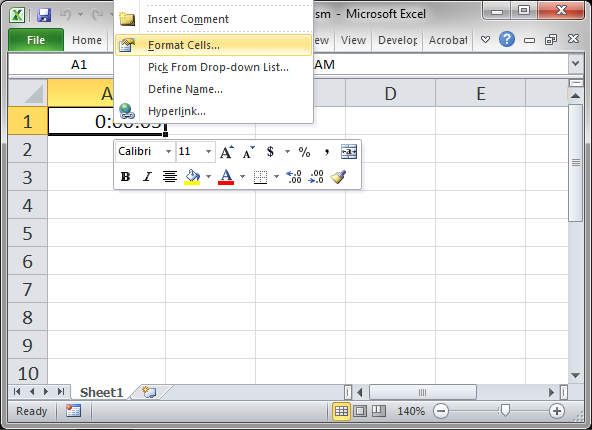
- Go to the cell that you want to contain the timer. Right-click that cell > click Format Cells...
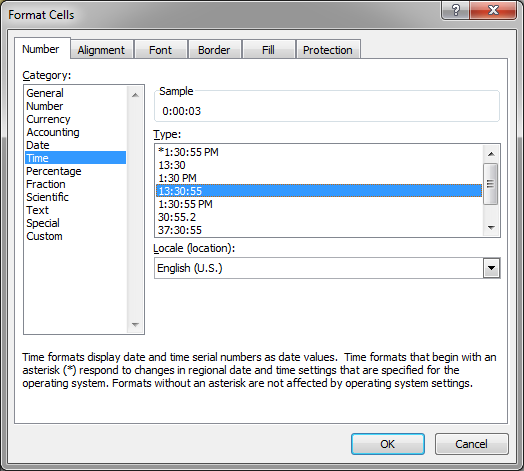
- Go to the Number tab and then to the Time category and select 13:30:55 from the section on the right. Then hit OK to get back to Excel.
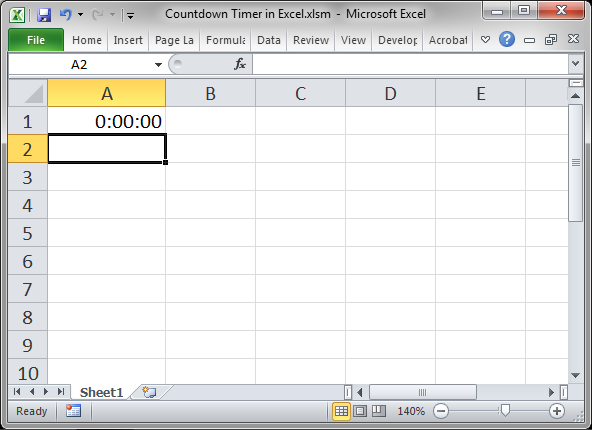
- You will now have a cell formatted like this:
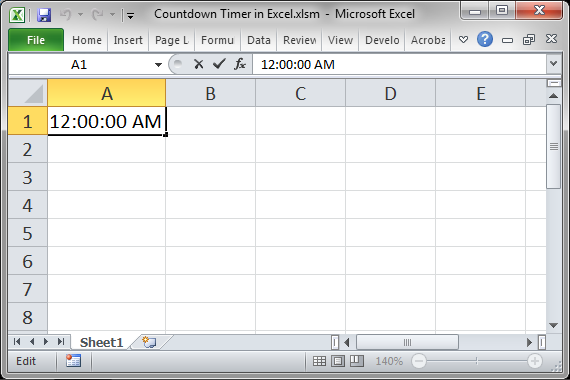
- Double-click the cell and it will have an annoying 12:00:00 AM time by default, but just ignore that.
- Type whatever time you want into this cell. The first set of zeros is for hours, the second set for minutes, and the third set for seconds. Delete what appears in the cell by default and type your number like this:
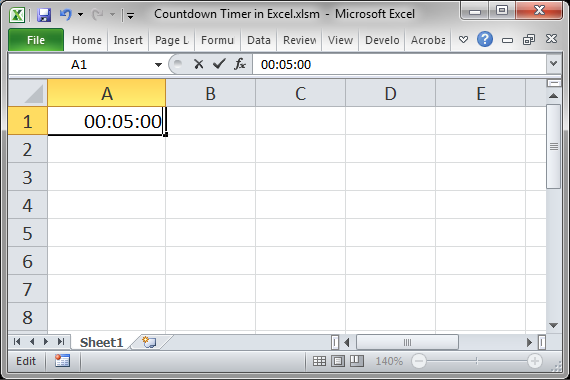
Hit enter and you get this: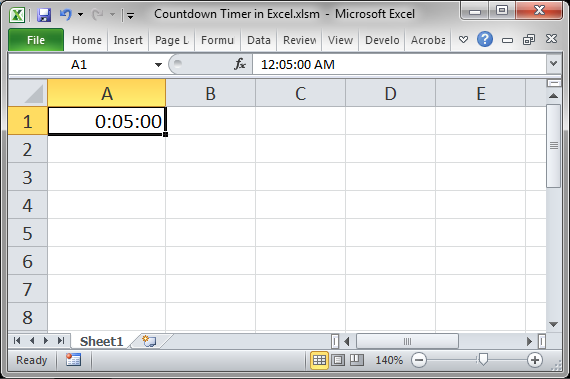
The time in the formula bar will look weird but don't pay attention to that; it doesn't matter. - Now, we add the VBA code and install the macro. To do this hit Alt + F11 to go to the VBA Editor window and then look to the menu at the top of the window and go to Insert > Module
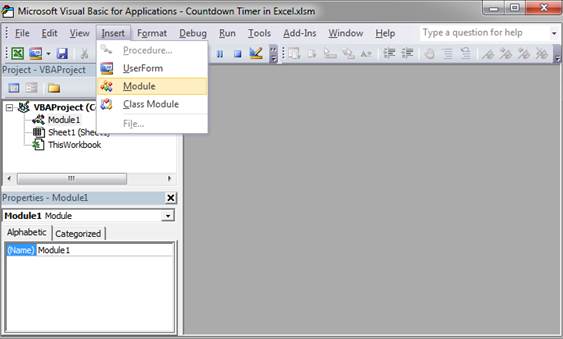
- A window will open like this:
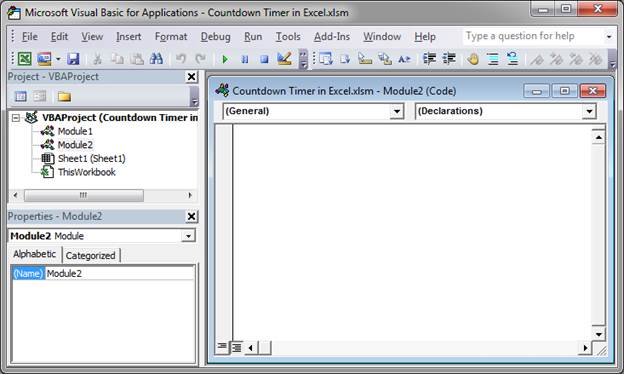
Paste the macro into this window.
Here is the macro code:Sub timer() interval = Now + TimeValue("00:00:01") If Range("A1").Value = 0 Then Exit Sub Range("A1") = Range("A1") - TimeValue("00:00:01") Application.OnTime interval, "timer" End Sub
It should now look something like this: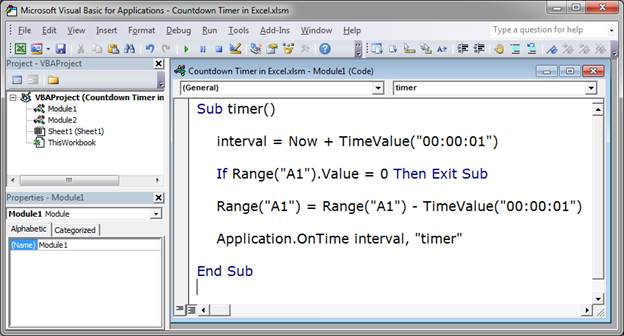
- Change the code to work for you. Everywhere that you see cell A1 you need to change that to the cell that contains the timer in your worksheet. So, if you put the timer in cell B6, then replace every instance of A1 with B6 in the code above.
- Hit Alt + F11 to go back to Excel and then hit Alt + F8, select the macro timer from the window that opened, hit the Run button, and watch the time count down.
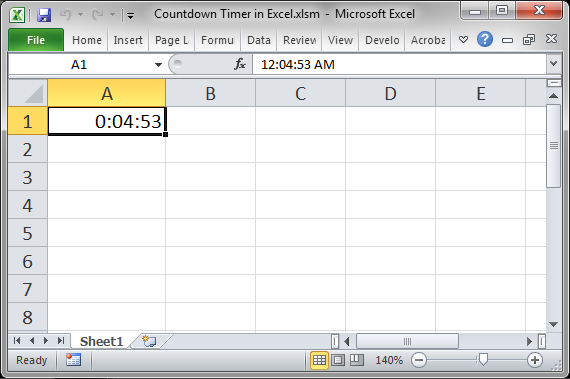
When the timer gets to zero, it will stop.
Add a Stop or Pause Feature to the Timer
Now that we have a working timer, it's a good idea to be able to stop it.
To do this, we need to add just a couple things to our macro.
- Hit Alt + F11 and then go to the module that you added in the last section. If it isn't already open, it should be listed in the left pane of the window and it will be called Module1, double-click that.
- Once you see the macro, add this line of code above it:
Public interval As Date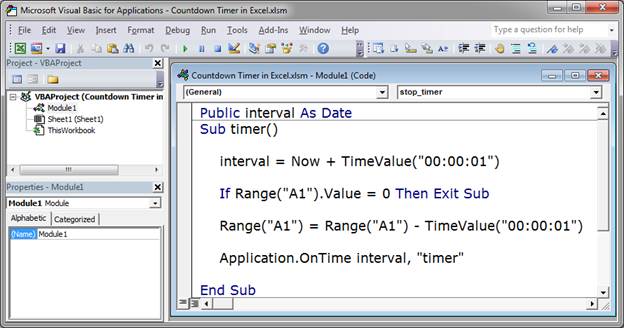
- Now, below all of the code, under where it says End Sub, add this macro:
Sub stop_timer() Application.OnTime EarliestTime:=interval, Procedure:="timer", Schedule:=False End Sub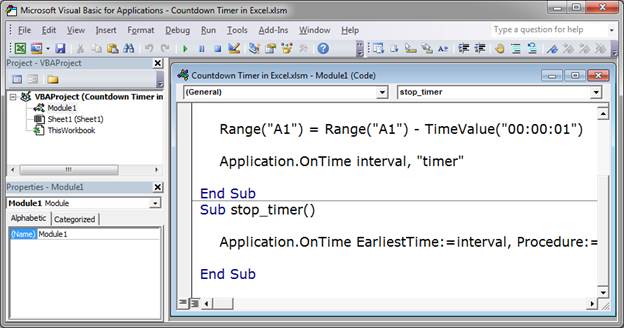
- Go back to Excel, Alt + F11 and then hit Alt + F8. In the window that opens click timer and hit the Run button.
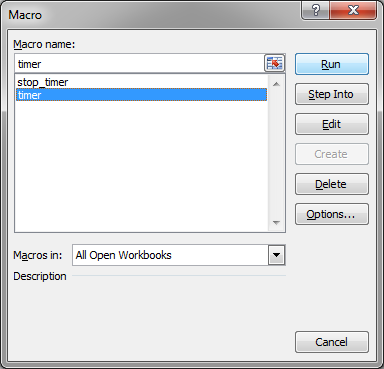
- The timer should now be running. To stop it, hit Alt + F8 again and select stop_timer and click the Run button.
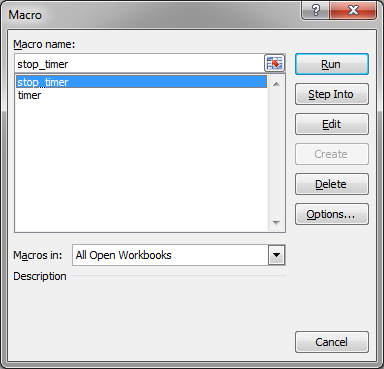
That's all there is to it!
Now, always going to the Macro window, Alt + F8, can be really annoying, so let's make these macros run from some buttons in the worksheet.
Add Buttons in the Spreadsheet to Control the Timer
This is a simple feature once you've got working macros.
Simply go to the Insert menu and select Shapes and then select a rounded rectangle.
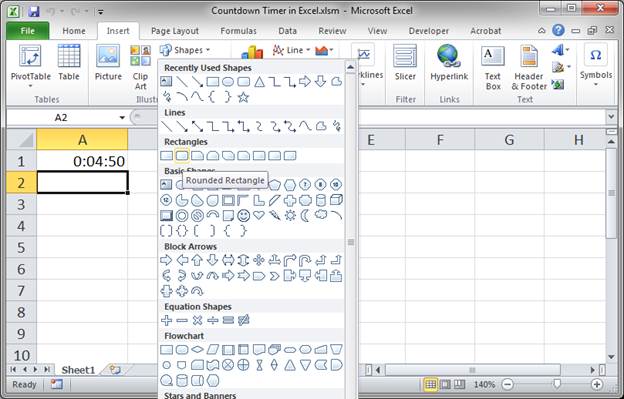
Adjust the size of the buttons and add some text to them.
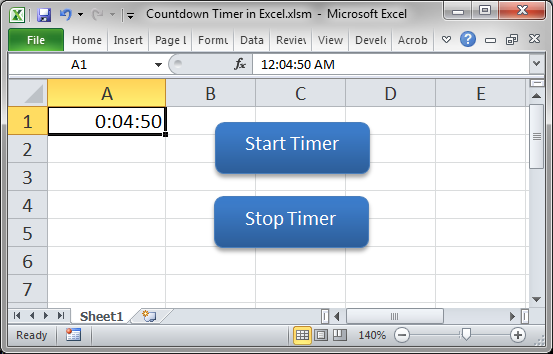
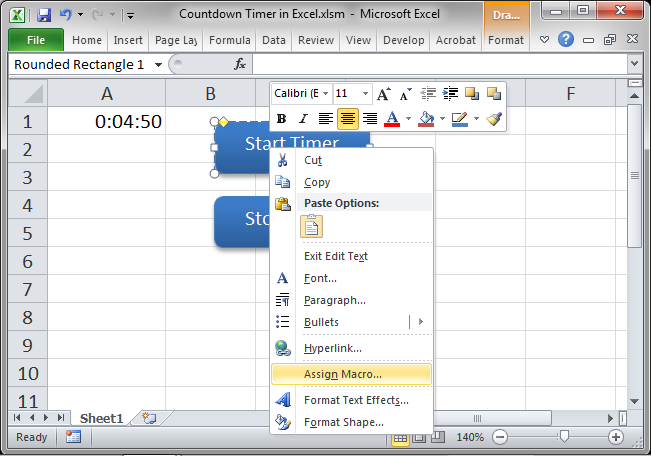
Right-click the first button and click Assign Macro...
In the window that opens, click timer and hit OK.
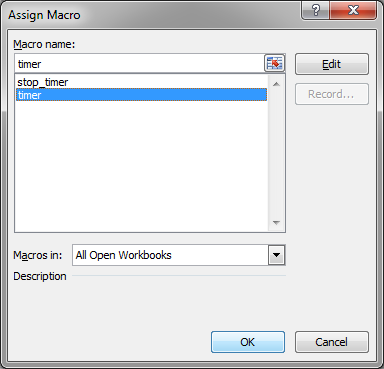
Repeat that for the next button, obviously selecting stop_timer this time.
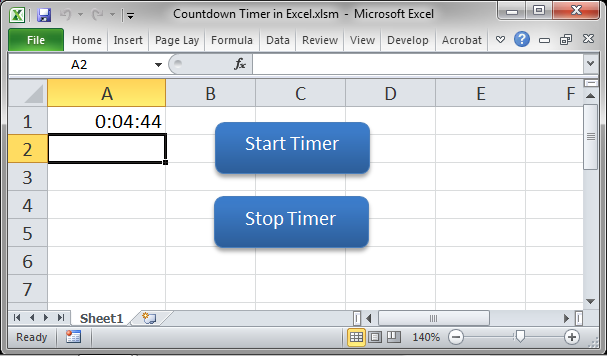
That's it!
If you want to learn more about adding buttons to Excel and making them run macros, check out this tutorial:
Attach a Macro to a Button in Excel
Countdown Timer Full Macro Code
Here is the complete macro code needed for this timer:
Public interval As Date
 Sub timer()

     interval = Now + TimeValue("00:00:01")

     If Range("A1").Value = 0 Then Exit Sub

     Range("A1") = Range("A1") - TimeValue("00:00:01")

     Application.OnTime interval, "timer"

 End Sub
 Sub stop_timer()
     Application.OnTime EarliestTime:=interval, Procedure:="timer", Schedule:=False
End SubThis code goes into a regular module.
Notes
When you first start the timer it may seem to count fast for the first couple seconds but it should quickly correct itself.
To make this macro run when the Excel workbook is opened, read these tutorials:
How to Run a Macro Automatically when Excel is Opened
How to Run a Macro from Another Macro
Make sure to download the spreadsheet attached to this tutorial so you can see everything in Excel and more easily copy/paste what you need.
Question? Ask it in our Excel Forum

Excel VBA Course - From Beginner to Expert
200+ Video Lessons 50+ Hours of Instruction 200+ Excel Guides
Become a master of VBA and Macros in Excel and learn how to automate all of your tasks in Excel with this online course. (No VBA experience required.)
Tutorial: Run a macro every 30 seconds, 1 minute, 10 minutes, 1 hour, etc.; this method allows you t...
Tutorial: I have found a rather convoluted method to Calculate the Number of Years, Months and Days ...
Tutorial: How to stop the annoying formatting window, the "Mini Toolbar" from appearing when you se...
Tutorial: How to format a Date so that only the day of the week is visible from that date. Result: ...
Tutorial: How to force Excel to recalculate all formulas and functions without editing or entering ...
Tutorial: Forms Course This tutorial shows you how to create a form within a regular worksheet in E...
Subscribe for Weekly Tutorials
BONUS: subscribe now to download our Top Tutorials Ebook!

Excel VBA Course - From Beginner to Expert
200+ Video Lessons
50+ Hours of Video
200+ Excel Guides
Become a master of VBA and Macros in Excel and learn how to automate all of your tasks in Excel with this online course. (No VBA experience required.)