
Count the Number of Unique Values in a List in Excel

Use a formula to count the number of unique values that are contained within a list in Excel.
Steps to Count the Number of Unique Values in a List
We need to enter a rather long formula, so it will be listed here in small parts.
- Type =SUM(
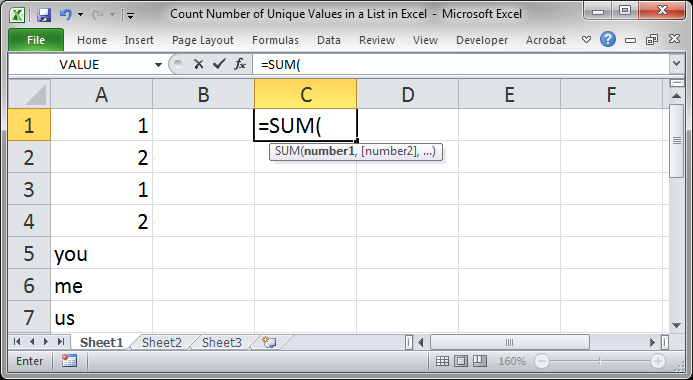
- Type 1/
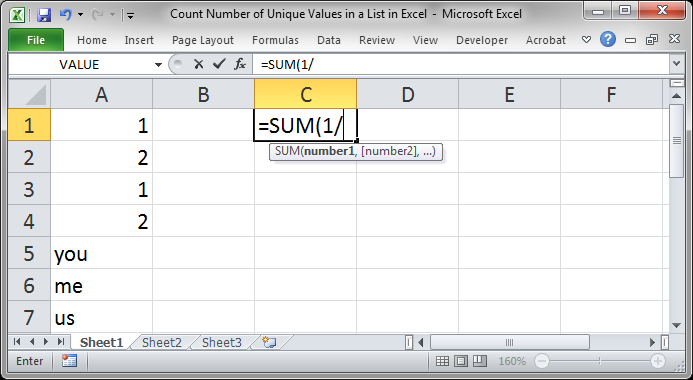
- Type COUNTIF(
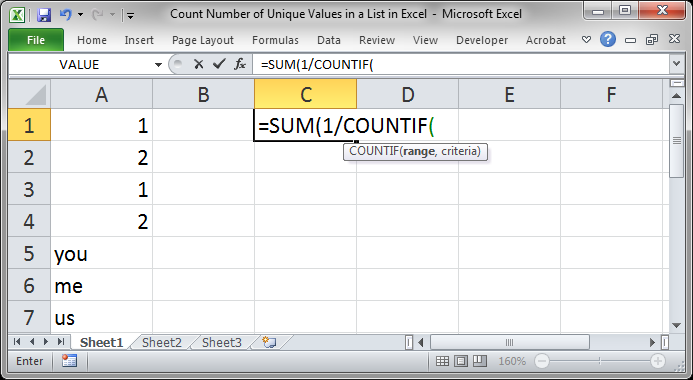
- Select the range of data that contains the values:
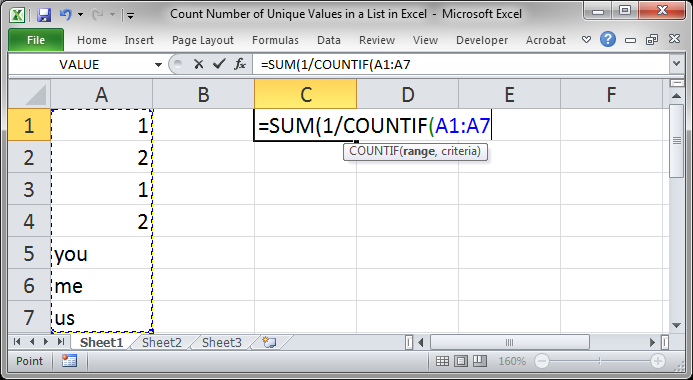
- Type a comma and then select that same range of values once more:
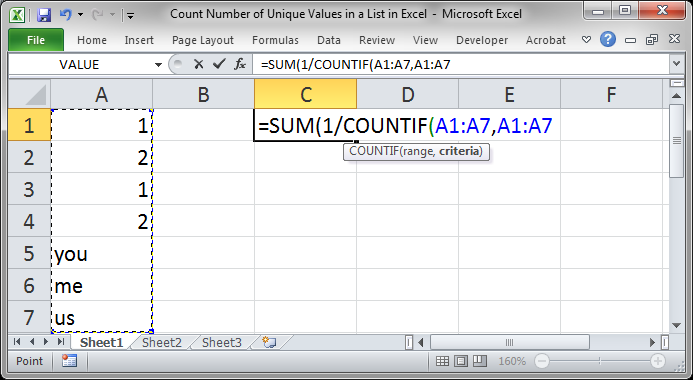
- Type two closing parenthesis.
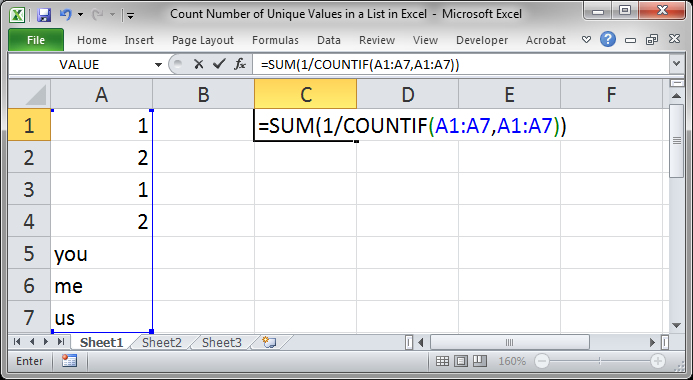
- Now, instead of hitting Enter, press Ctrl + Shift + Enter. If you do this correctly, you should see curly braces {} now surrounding your formula when you look to the formula bar.
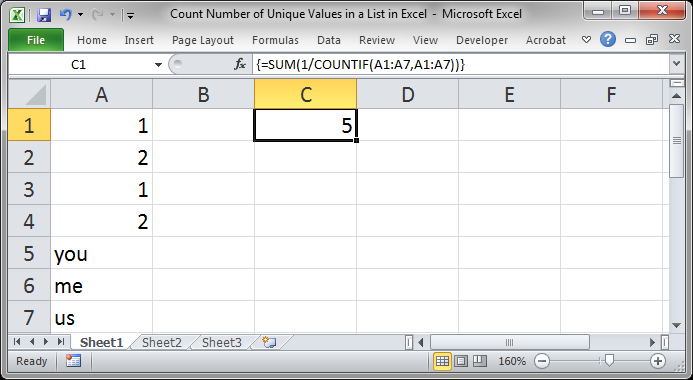
This is the final formula:
=SUM(1/COUNTIF(A1:A7,A1:A7))
The curly braces have not been included in the formula because they do not appear until you enter the formula using Ctrl + Shift + Enter and, in fact, you will need to use that way to input this formula any time you go to edit it.
Notes
The last step is what makes this formula count the number of unique values in the list. Hitting Ctrl + Shift + Enter to input the formula makes the formula an array formula, which is what makes it all work.
There is no point to learn everything about this formula because, honestly, array formulas are a real pain in the you-know-what. The important thing is to bookmark this tutorial and come back to it when you need to have a formula that counts the number of unique values in a list or range in Excel.
Download the sample file that accompanies this tutorial so you can see this formula in action or if you just want to copy it instead of typing it in.
Question? Ask it in our Excel Forum

Excel VBA Course - From Beginner to Expert
200+ Video Lessons 50+ Hours of Instruction 200+ Excel Guides
Become a master of VBA and Macros in Excel and learn how to automate all of your tasks in Excel with this online course. (No VBA experience required.)
Tutorial: How to highlight the rows of the top and bottom performers in a list of data. This allows...
Tutorial: How to get the name of a worksheet in Excel using VBA and Macros and also how to store tha...
Macro: Count words in cells with this user defined function (UDF). This UDF allows you to count t...
Tutorial: How to count cells that match text at the start or the end of a string in Excel. If you w...
Tutorial: Display all formulas instead of their output values. This allows you to quickly troubles...
Tutorial: How to loop through a range of cells in a UDF, User Defined Function, in Excel. This is ...
Subscribe for Weekly Tutorials
BONUS: subscribe now to download our Top Tutorials Ebook!

Excel VBA Course - From Beginner to Expert
200+ Video Lessons
50+ Hours of Video
200+ Excel Guides
Become a master of VBA and Macros in Excel and learn how to automate all of your tasks in Excel with this online course. (No VBA experience required.)